

A beautiful workspace can still leave you with a tight neck at 16:00. The difference is rarely one dramatic mistake. It is usually a chair set slightly too low, a screen that asks your head to lean forward, or a desk that makes changing position feel inconvenient. This office ergonomics guide is about correcting those small frictions so your workspace supports the way you actually work.
Ergonomics is not a rigid posture held for eight hours. It is the relationship between your body, your furniture and your daily habits. The aim is simple: create a workstation that lets you move often, see clearly and work with less unnecessary strain. Good design helps because it makes the healthier choice the natural one.
Start With Your Chair, Not Your Desk
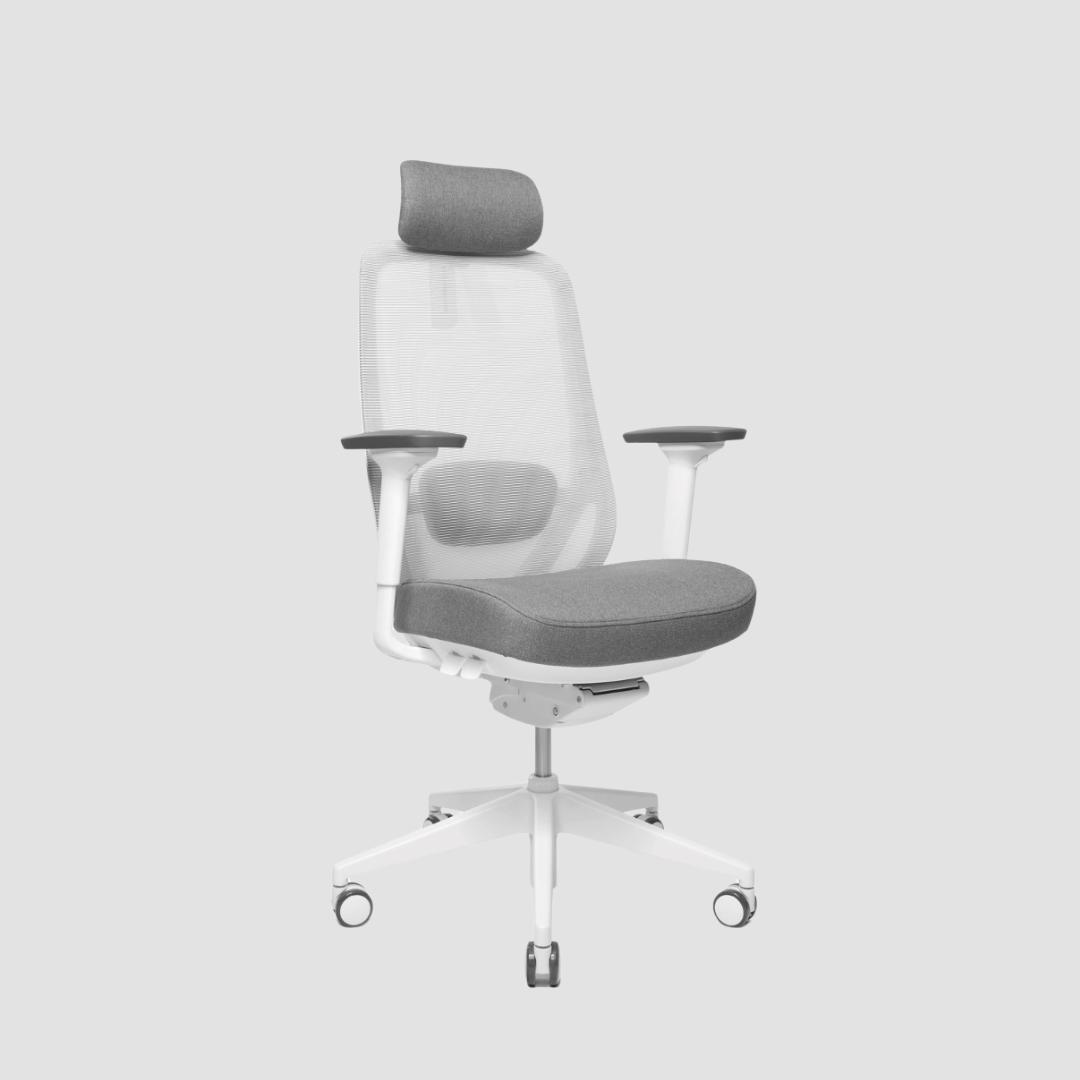
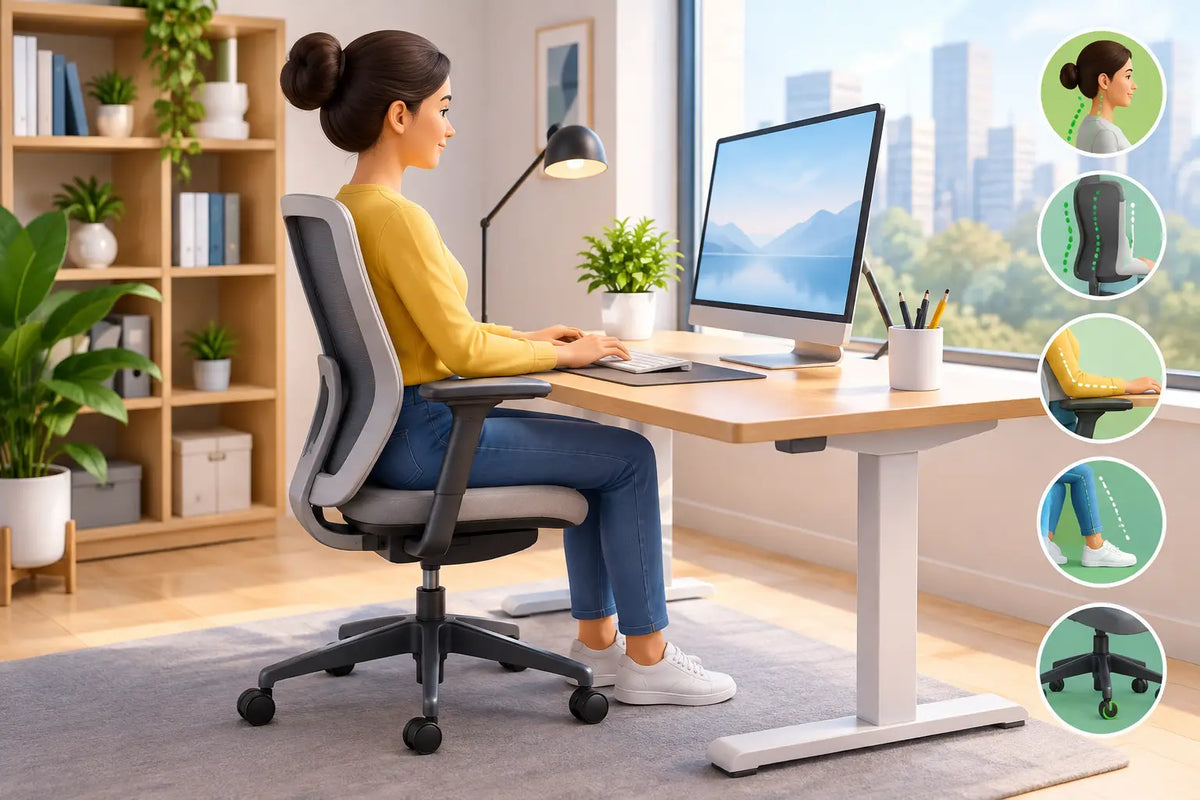
Your chair establishes the baseline for almost everything else. Before adjusting screen height or reaching for a footrest, sit back properly and let your feet rest flat on the floor. Your knees should sit roughly level with, or slightly below, your hips. This keeps the pelvis from rolling backwards and gives your lower back a more stable position.
Adjust the seat height first. If your feet cannot reach the floor without pressure behind the thighs, lower the chair or use a footrest. If your knees are rising above your hips, raise it. The goal is not a perfect 90-degree angle. Bodies differ, and comfort is a better signal than treating your chair like a technical drawing.
The seat depth matters just as much. When sitting back against the backrest, leave a small gap of two or three fingers between the front edge of the seat and the back of your knees. Too much depth can press into the legs and encourage slouching. Too little can leave the thighs unsupported.
Use the backrest to support the natural inward curve of your lower back. Lumbar support should meet the lower back rather than sit high between the shoulder blades. Armrests are useful when they allow your shoulders to relax, but they become a problem when they push your shoulders upwards or stop the chair fitting under the desk. In that case, lower them or move them out of the way.
Set Your Desk Height Around Relaxed Shoulders
Once your chair is right, let your desk meet you there. Place your hands on the keyboard and allow your elbows to rest close to your sides. Your forearms should be approximately level with the floor, while your shoulders remain relaxed rather than lifted.
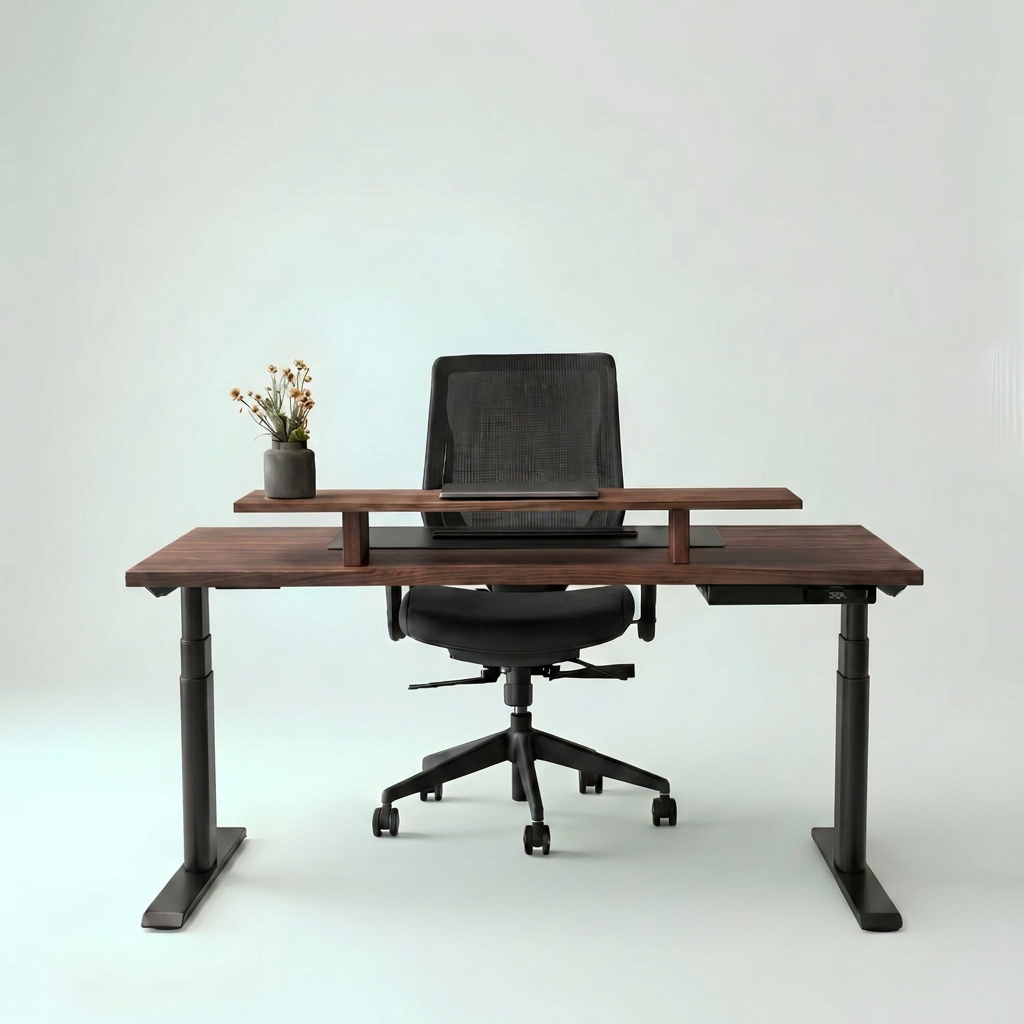
For many people, a fixed-height desk is too high when paired with correct chair height. Raising the chair to compensate often leaves the feet hanging, which creates another issue. A height-adjustable desk gives you more freedom to fit the work surface to your body instead of adapting your body to a standard measurement.
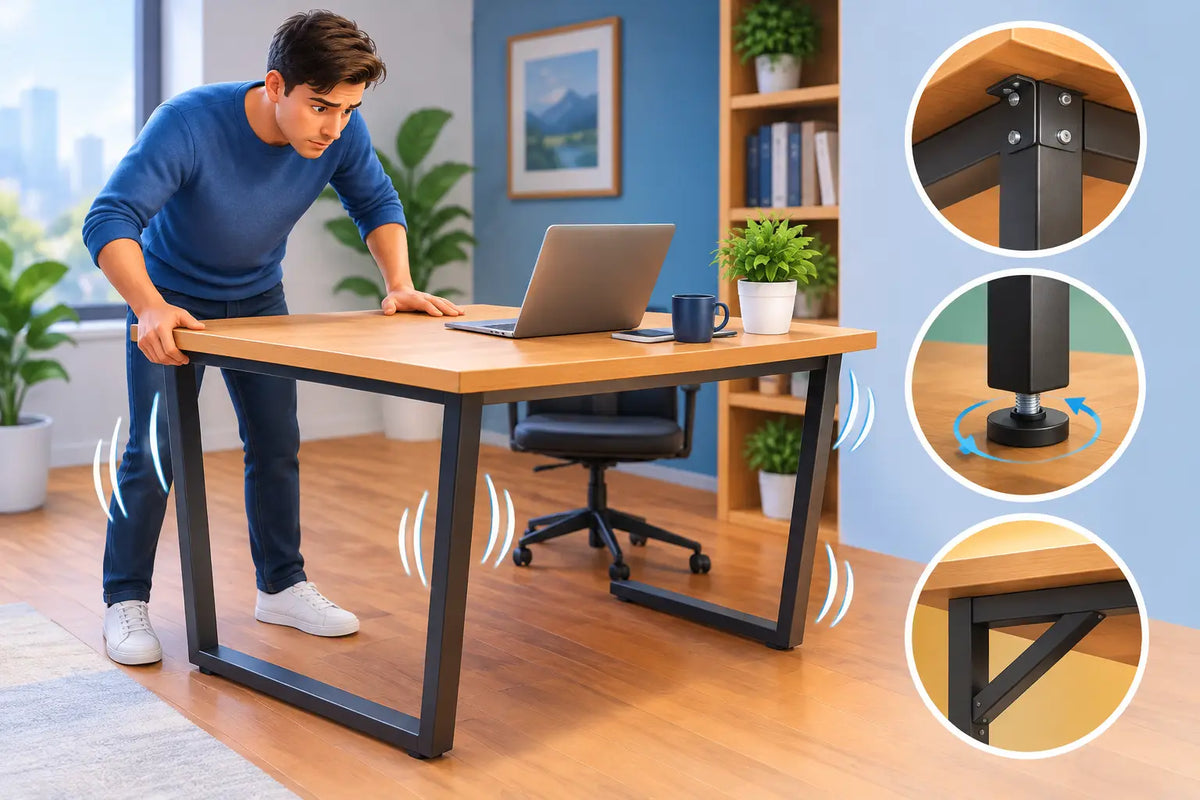
A desk should also give you enough depth. A shallow surface forces the screen close to your face and leaves little room for forearm support. A generously proportioned solid oak desktop has a practical benefit beyond its visual presence: it creates space for a monitor, keyboard, notebook and considered cable routing without turning the work area into a compromise.
Keep the most-used objects within easy reach. Your keyboard and mouse should sit close enough that you are not repeatedly extending your arm from the shoulder. If you work with a laptop, an external keyboard and mouse make a meaningful difference. Typing on a raised laptop may improve screen height, but it creates an awkward wrist and shoulder position unless the keyboard is separated.
Office Ergonomics Guide: Get the Screen Right
A monitor that is too low is one of the most common reasons people gradually lean forward. Over time, that forward head position asks the neck and upper back to do work they were never designed to sustain all day.
Place the top third of the screen around eye level as a starting point. If you wear progressive lenses, you may prefer it slightly lower to avoid tipping your head back. The screen should generally sit about an arm’s length away, though larger monitors can work well at a greater distance. What matters is that text is comfortably readable without leaning forward or narrowing your eyes.
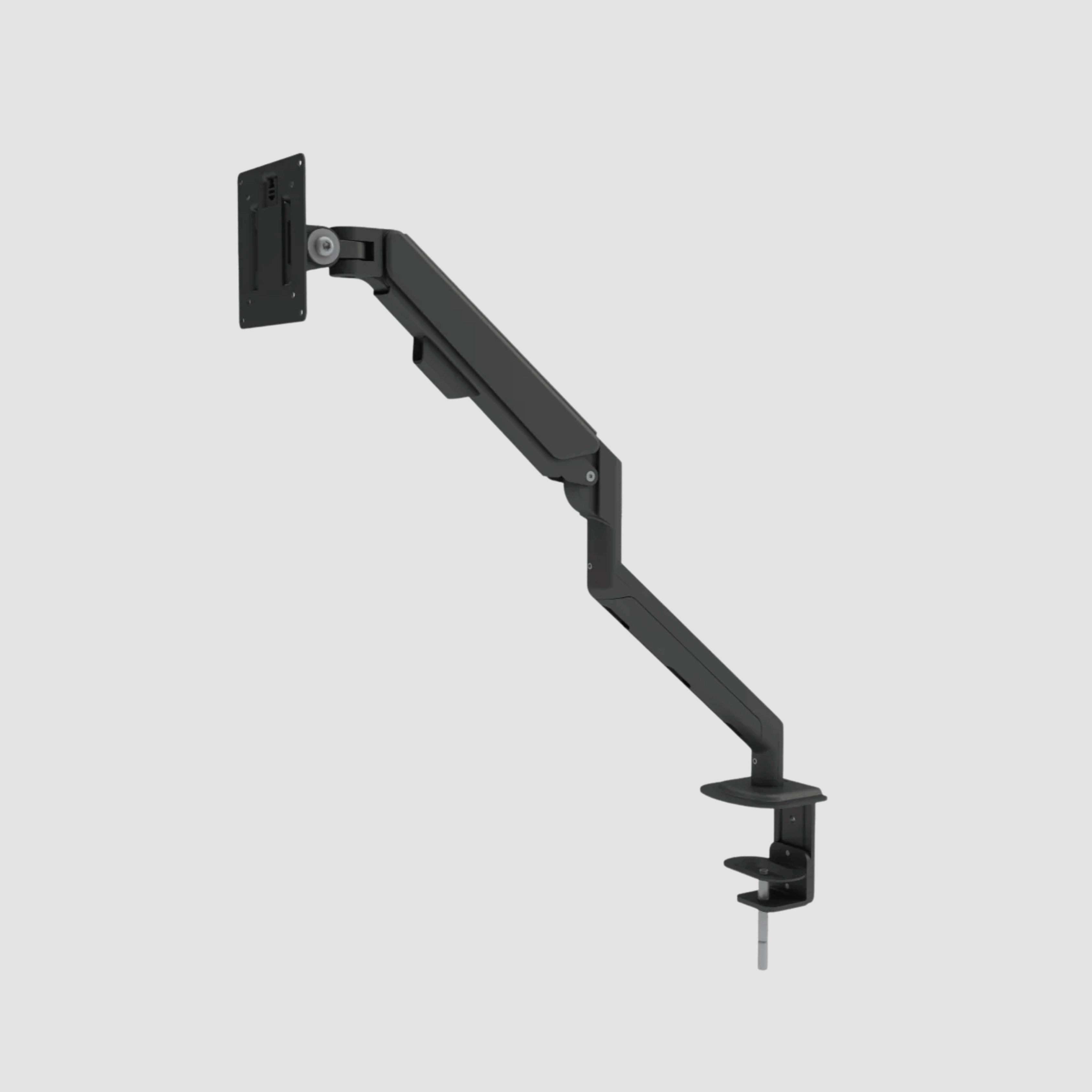
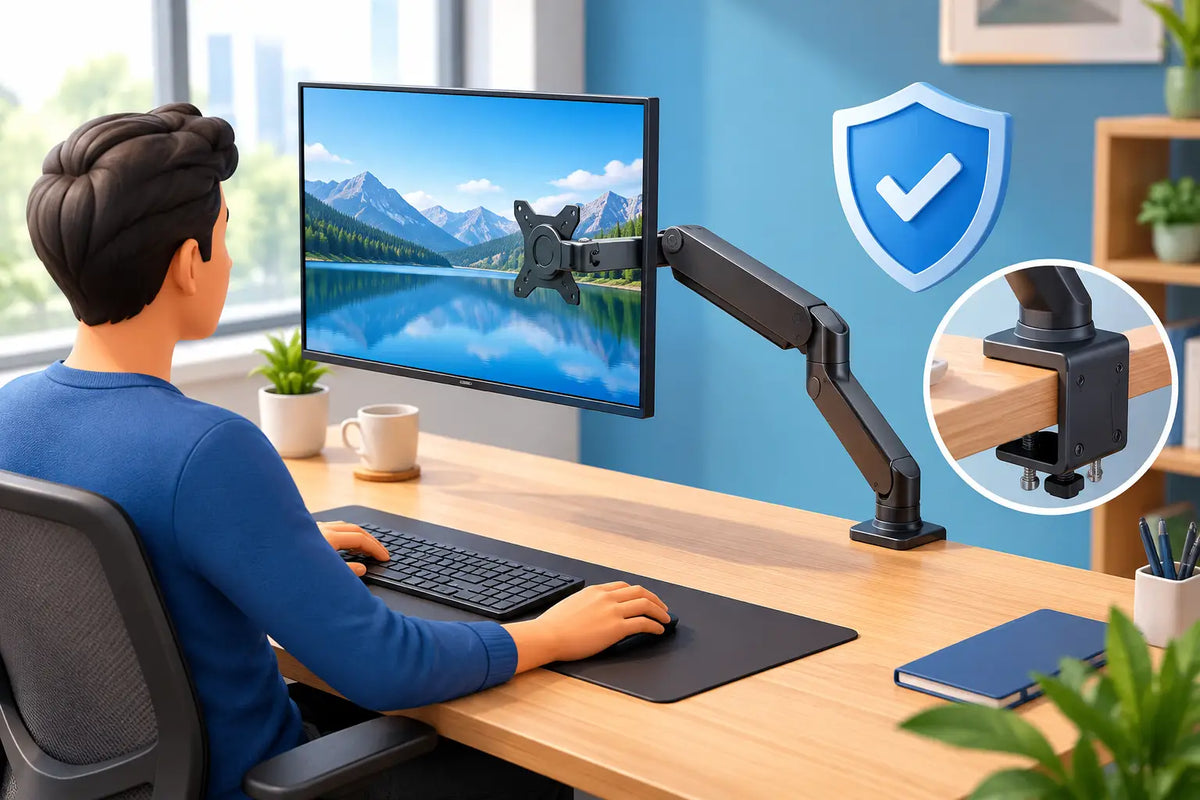
A monitor arm is especially helpful because it allows precise adjustment without consuming desk space. It also makes it easier to change your setup when moving between focused laptop work, video calls and creative tasks. For dual screens, position the monitor you use most directly in front of you. If both are used equally, place them side by side with the join centred in front of your body.
Avoid working for long stretches with a laptop flat on the desk. It forces a choice between looking down at the screen and lifting your arms to type. Neither is ideal. A laptop stand, external keyboard and compact mouse can turn the same computer into a far better workstation.
Standing Is a Change of Position, Not a Test of Endurance
Standing desks are valuable because they offer variety, not because standing all day is inherently superior. Long, static standing can cause foot, lower-leg and lower-back fatigue just as prolonged sitting can. The advantage is the ability to move between positions before discomfort builds.
Start modestly. Try standing for 15 to 30 minutes at a time, particularly during calls, email and lighter tasks. Sit down for work that requires sustained concentration or detailed precision if that feels better. There is no prize for remaining upright through a full afternoon.
When standing, set the desktop at the same elbow-friendly height you use while seated. Keep both feet supported and distribute your weight naturally. A supportive floor mat can make hard flooring more forgiving, while comfortable shoes matter more than many people expect.
A dual-motor frame is worth considering if you change height frequently. It should move steadily, accommodate your equipment confidently and remember the heights that suit you. The best desk is not simply a surface that rises. It is one you will genuinely use in both positions, day after day.
Build Movement Into the Workday
No chair, desk or monitor can make an unmoving body comfortable indefinitely. Even an impeccably configured setup benefits from regular interruption. The most useful movement is usually ordinary and frequent: standing to refill water, walking during a call, rolling the shoulders between tasks or looking away from the screen while a document loads.
Rather than relying on willpower, make movement part of your environment. Keep water away from the desk. Store reference materials where you need to stand to reach them. Use a sit-stand desk preset as a cue to change position at natural points in the day, such as after a meeting or before starting a new task.
For screen comfort, use the 20-20-20 principle when practical: every 20 minutes, look at something around 20 feet away for 20 seconds. It is not a cure for a poorly arranged workstation, but it gives the eyes and attention a needed reset.
Do Not Let Accessories Create New Problems
The details around the desk can either preserve a calm setup or undermine it. Cable clutter catches feet, limits desk movement and makes cleaning harder. A cable tray or considered routing system keeps power supplies and leads away from the work zone, particularly on a height-adjustable desk.
Lighting deserves equal attention. Position your monitor perpendicular to a window where possible, rather than directly in front of or behind it. This reduces glare and harsh contrast. A task light can support reading and writing, but it should illuminate the surface without reflecting into the screen.
Your mouse should suit the work you do. A compact mouse may be convenient for travel, while a larger model can offer better palm support during long desktop sessions. There is no universal winner. If you feel tension in the hand or forearm, experiment with mouse size, sensitivity and placement before assuming the issue is unavoidable.
OAKO approaches the workspace as a complete system: real oak, stable technology and the practical elements that allow the desk to remain clear and adaptable. That matters because ergonomic improvements last longer when they also belong visually in the room.
Make Adjustments Slowly and Pay Attention
A better setup should feel easier, not strange. Still, if you have worked in one position for years, even a sensible change may take a few days to feel familiar. Adjust one or two variables at a time, then notice what changes by the end of the day. Neck tension, wrist pressure, headaches and numbness are useful signals, not inconveniences to ignore.
Persistent or severe pain deserves advice from a qualified healthcare professional. Ergonomic furniture can reduce avoidable strain, but it is not a substitute for clinical assessment when something does not improve.
Your desk should make room for ambition, concentration and the quieter moments between them. Set it up with care, keep it adaptable, and let the materials around you earn their place through comfort as much as character.

Commenta
Questo sito è protetto da hCaptcha e applica le Norme sulla privacy e i Termini di servizio di hCaptcha.