


A beautifully made desk can change the character of a room. But when your chair is set too high, too deep or too rigid, even the finest workspace starts to work against you. Proper ergonomic chair adjustment turns the chair from an afterthought into a considered part of your working day - supporting focus, posture and the freedom to move.
The aim is not to hold one perfectly straight position for eight hours. Bodies are not designed for that. The aim is to create a reliable starting position, then give yourself enough support and range to shift naturally throughout the day.
Start With Ergonomic Chair Adjustment, Not the Desk
It is tempting to set the desk first, especially with a height-adjustable workstation. In seated mode, however, the chair should establish the foundation. Your feet, pelvis and lower back need to feel settled before you decide where the desktop, monitor and keyboard belong.
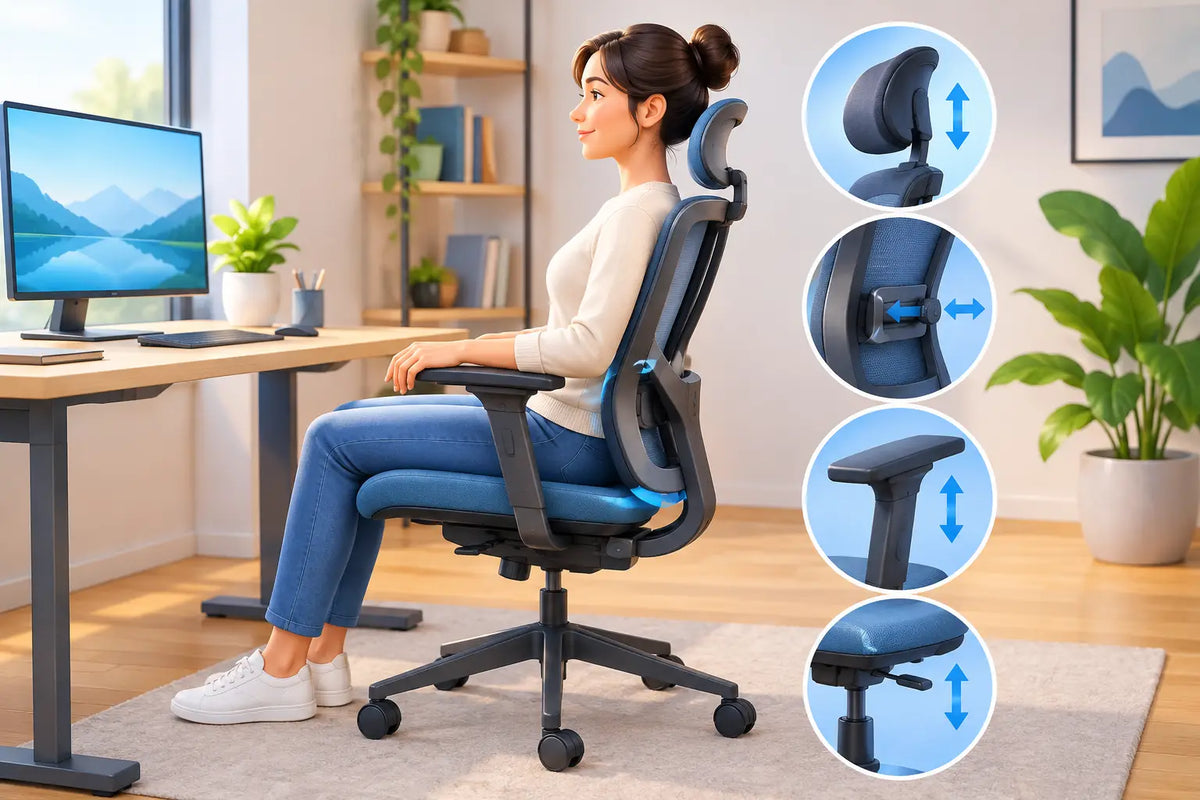
Sit fully back in the chair with both feet resting flat on the floor. Avoid perching on the front edge or tucking one leg underneath you. Your knees should sit roughly level with your hips, or very slightly lower, with a comfortable angle rather than a sharply closed bend.
If the desk is fixed and too high once your chair is correctly adjusted, raising the chair is not the best compromise. It can leave your feet hanging and put pressure beneath the thighs. Use a stable footrest if necessary, or consider whether the desk height itself can be changed. A premium workspace earns its place by adapting to the person using it, not asking the person to adapt to it.
Set Seat Height for Grounded Support
Begin with the seat-height lever. Raise or lower the chair until your feet are fully supported and your thighs feel relaxed rather than compressed. There should be no hard edge pressing into the back of the knees.
Now bring your arms to your keyboard. Your elbows should rest close to your sides at approximately a right angle, while your shoulders remain low and easy. If you find yourself lifting the shoulders to reach the desk, the work surface is too high. If your wrists tip upward or you feel yourself collapsing forward, the relationship between chair, desk and input devices needs revisiting.
Exact angles vary with proportions, footwear and task. A graphic designer working with a pen display may prefer a slightly different setup from someone writing reports all day. Comfort without strain is the useful measure, not a rigid pursuit of textbook geometry.
Adjust Seat Depth Before You Blame Your Back
Seat depth is often overlooked, yet it has a direct effect on circulation and back support. Slide the seat pan, if your chair allows it, so there is a gap of around two to three fingers between the front edge of the seat and the back of your knees.
Too much depth pushes the seat edge into the calves and encourages you to slide forward, losing contact with the backrest. Too little depth leaves too little support beneath the thighs. The right position lets you sit back comfortably while the chair carries a meaningful portion of your leg weight.
For smaller users, adjustable seat depth can be more valuable than an oversized chair with impressive-looking features. For taller users, a deeper seat can feel more balanced, provided it does not cut into the knee area. Fit is personal, which is why adjustability matters more than a one-size silhouette.
Give Your Lower Back a Place to Rest
Lumbar support should meet the natural inward curve of the lower back, generally around belt level. It should feel present but not forceful. If it is too low, it can create pressure around the pelvis; too high, and it may feel as though the chair is pushing you away from the desk.
Adjust the lumbar height first, then its depth or firmness if those controls are available. A modest amount of support is usually enough. The goal is to help you maintain contact with the backrest, not to exaggerate the curve of your spine.
Backrest tension deserves the same attention. When reclining, you should be able to lean back without fighting the chair or falling suddenly into it. A gentle recline of roughly 100 to 110 degrees often reduces pressure compared with sitting bolt upright. For concentrated typing, a more upright position can feel right; for reading, calls or thinking through a problem, a controlled recline is often more comfortable.
Do not lock yourself into one angle all day. A chair with a well-tuned recline encourages the small changes in posture that static seating removes.
Set Armrests to Support, Not Restrict
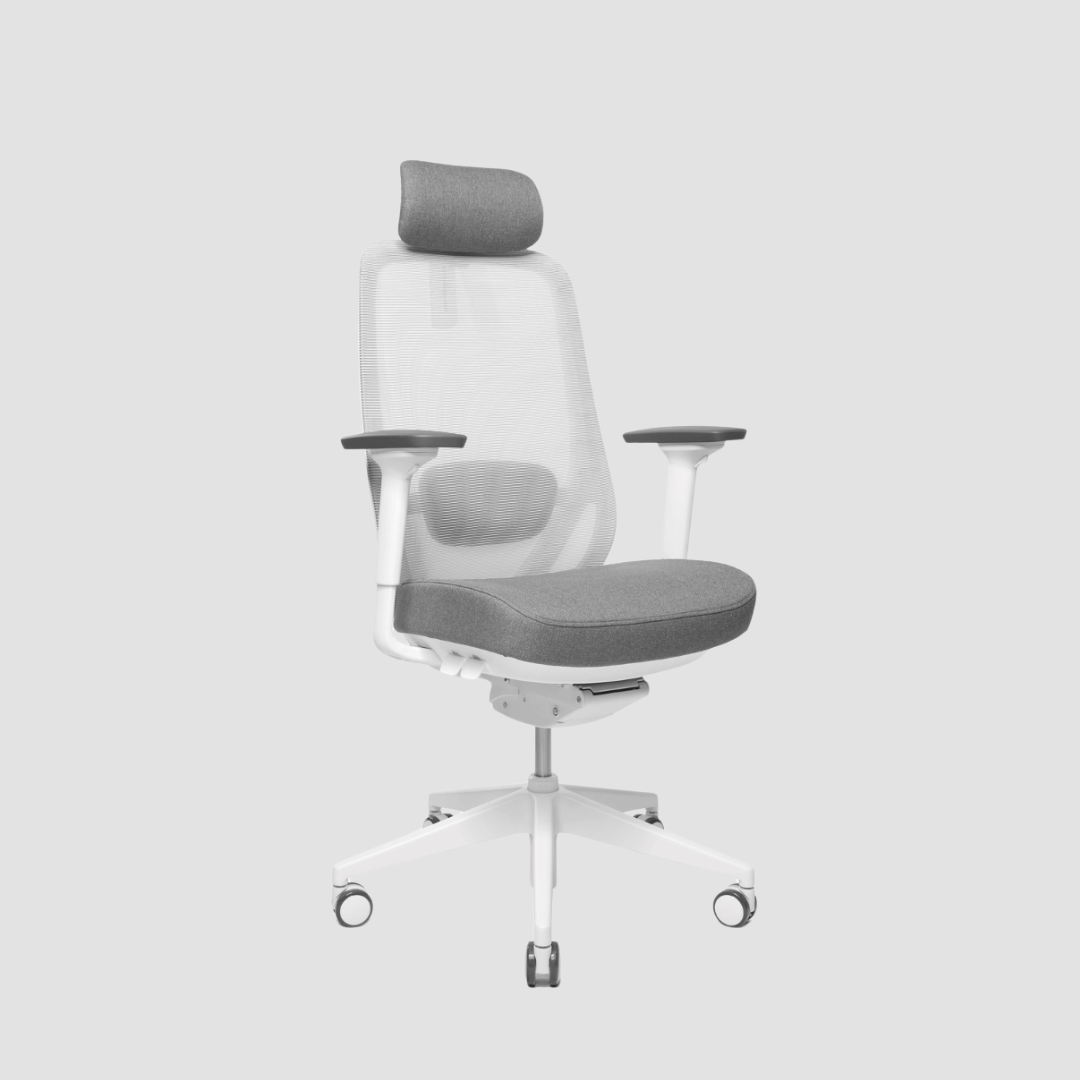
Armrests are useful when they take weight from the shoulders without interfering with your approach to the desk. Set their height so your forearms can rest lightly and your shoulders stay relaxed. They should not force the elbows upward or make you reach outward.
If armrests stop you from sitting close enough to the desk, lower them, narrow them or move them back where the mechanism allows. In some focused keyboard tasks, people prefer armrests slightly below elbow height so they can move freely beneath the desktop. During calls, reading and pauses, they can offer welcome relief.
Width and pivot adjustments matter too. Ideally, the armrests follow the natural line of your forearms rather than sending your wrists inward or outward. They are there to reduce unnecessary effort, not to dictate where your arms must be.
Check Your Headrest With Care
A headrest is not essential for every desk chair. It is most helpful during reclined work, video calls or short restorative pauses. Adjust it to meet the back of the head or upper neck lightly, without pushing your chin toward your chest.
For upright computer work, a headrest that constantly touches the head can encourage an unnatural forward position. If that is how it feels, move it back or leave it unused until you recline.
Match the Chair to Your Desk and Screen
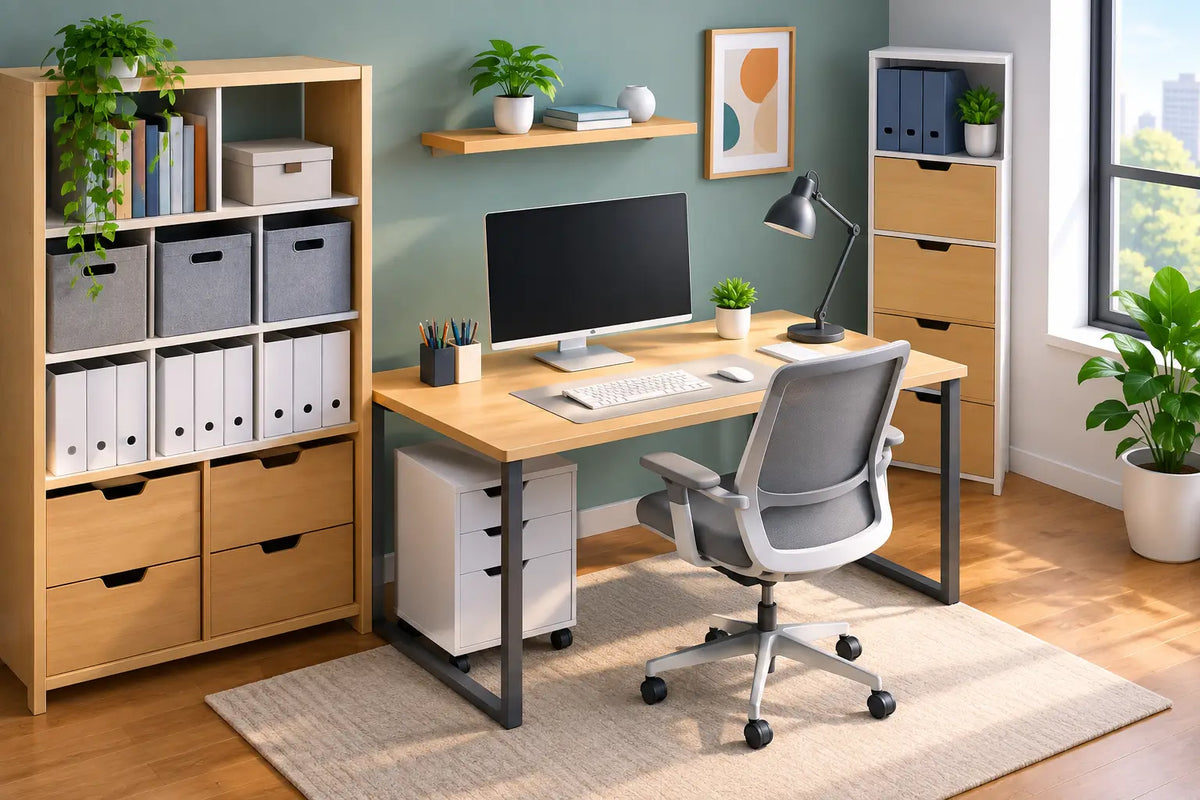
Ergonomic chair adjustment only works fully when the rest of the workstation follows it. Once your chair is set, bring your desk to elbow height for seated work. With a height-adjustable desk, save that position if the controls allow it. This makes a good setup repeatable after someone else has used the desk or after you have changed the room.
Place the keyboard and mouse close enough that you do not have to reach. Keep the mouse on the same level as the keyboard, and allow your wrists to remain neutral rather than bent upwards. The top third of the monitor should generally sit near eye level, though screen height depends on vision, lenses and whether you work with one or several displays.
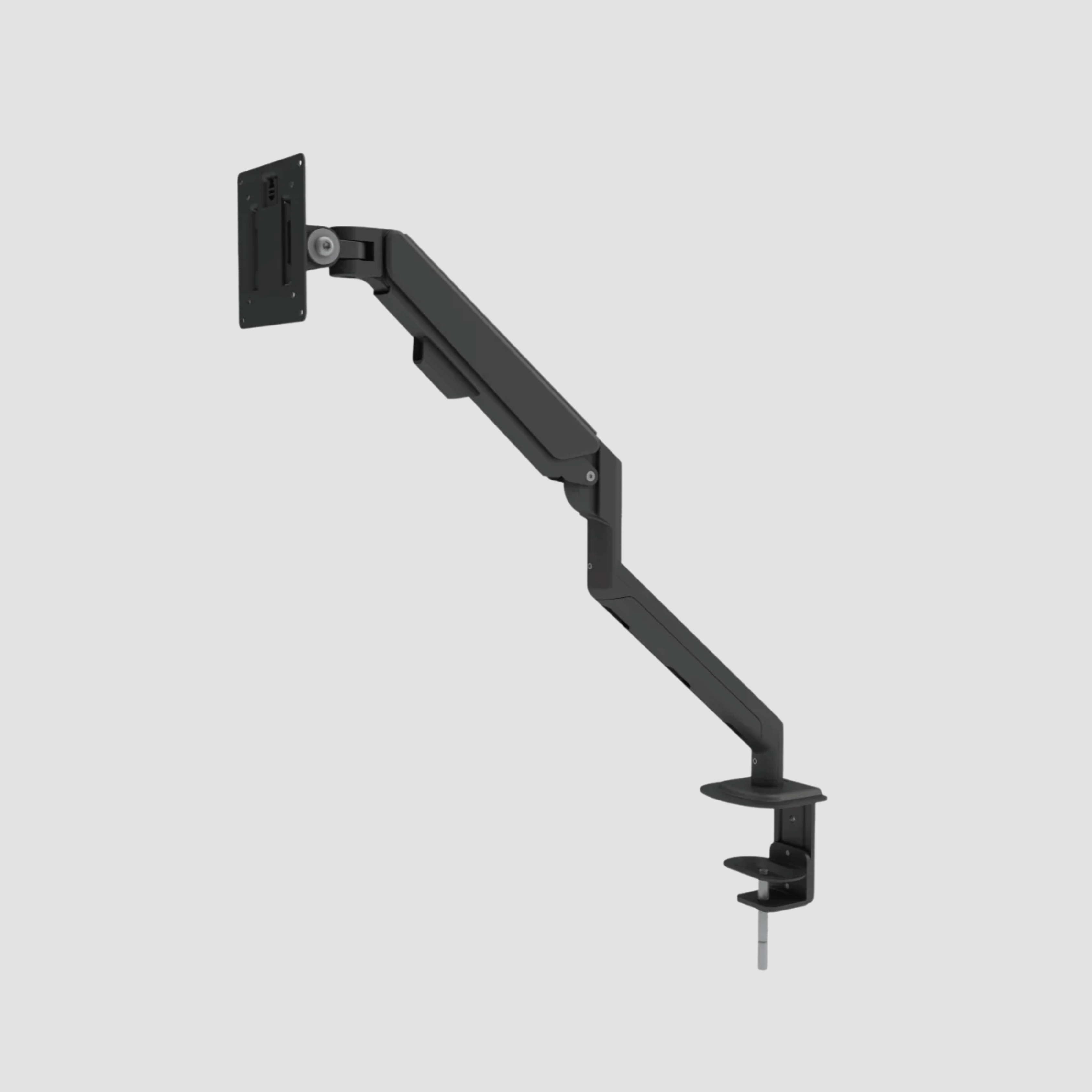
A monitor that is too low can make a perfectly adjusted chair feel wrong because your neck is repeatedly pulled forward. A monitor arm can solve that problem cleanly while freeing valuable desk space. At a solid oak desktop, this restraint matters: the surface should feel calm, useful and honest, not crowded with avoidable clutter.
Revisit Your Setup When You Change Tasks
The best seated setup is not necessarily the best standing setup. When moving from chair to standing desk height, raise the desktop until your elbows again rest comfortably beside your body. Your screen may need a separate adjustment, particularly if you are tall or use a laptop.
Alternate rather than replacing one static position with another. You might sit for a focused writing block, stand during calls, then return to a lightly reclined seated posture to review work. The useful rhythm depends on your work, your body and your concentration. Standing all day is no more of an ergonomic achievement than sitting all day.
Small habits make the adjustment last. Move the chair close before you begin. Let the backrest support you. Keep frequently used tools within easy reach. Then stand, walk or change position before discomfort becomes the prompt. Ergonomics works best as quiet maintenance, not an emergency response to pain.
A considered chair, an adjustable desk and a workspace built from materials made to endure can support years of better work. Set the chair for your body, leave room for movement, and let comfort become part of the craft of your day.


Leave a comment
This site is protected by hCaptcha and the hCaptcha Privacy Policy and Terms of Service apply.