


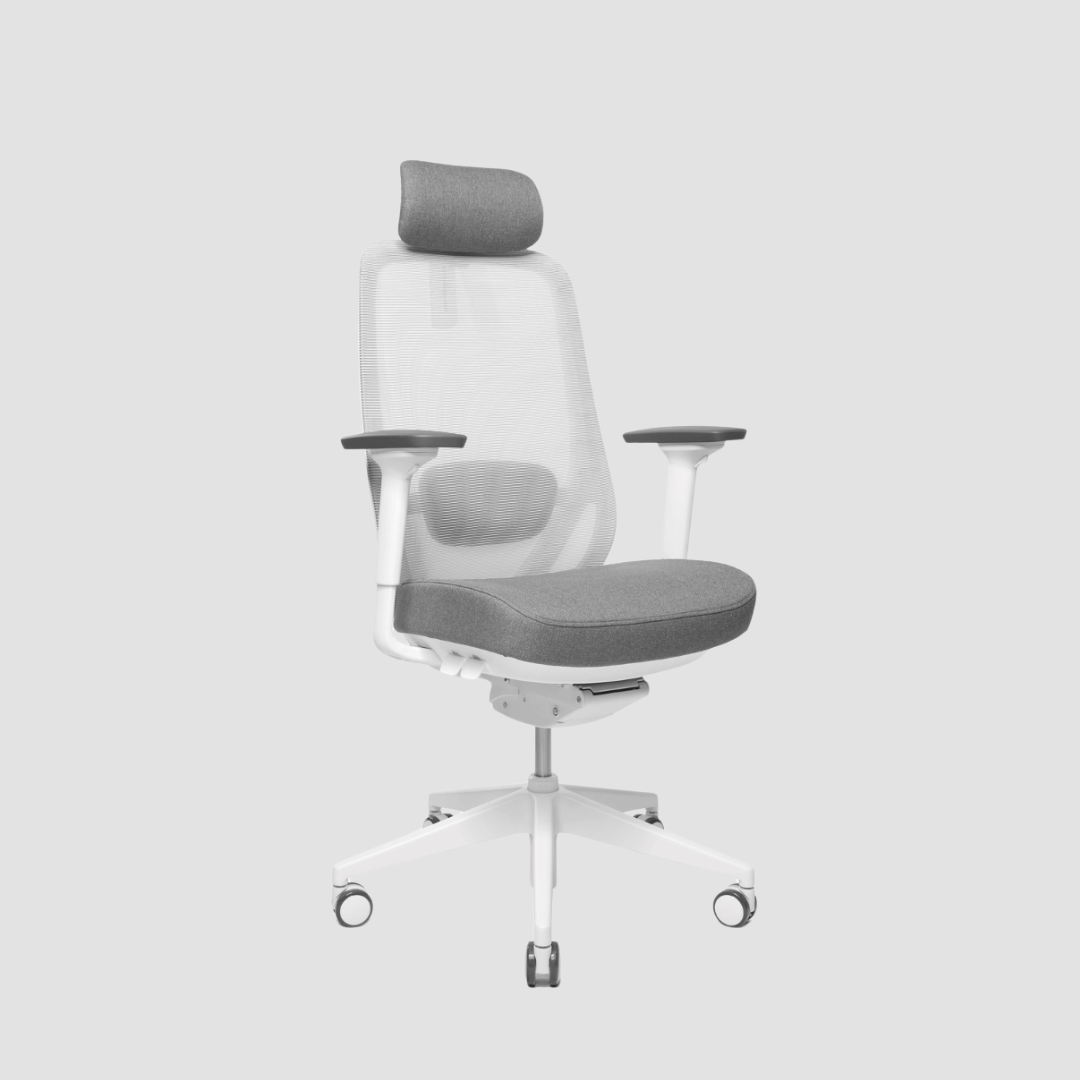
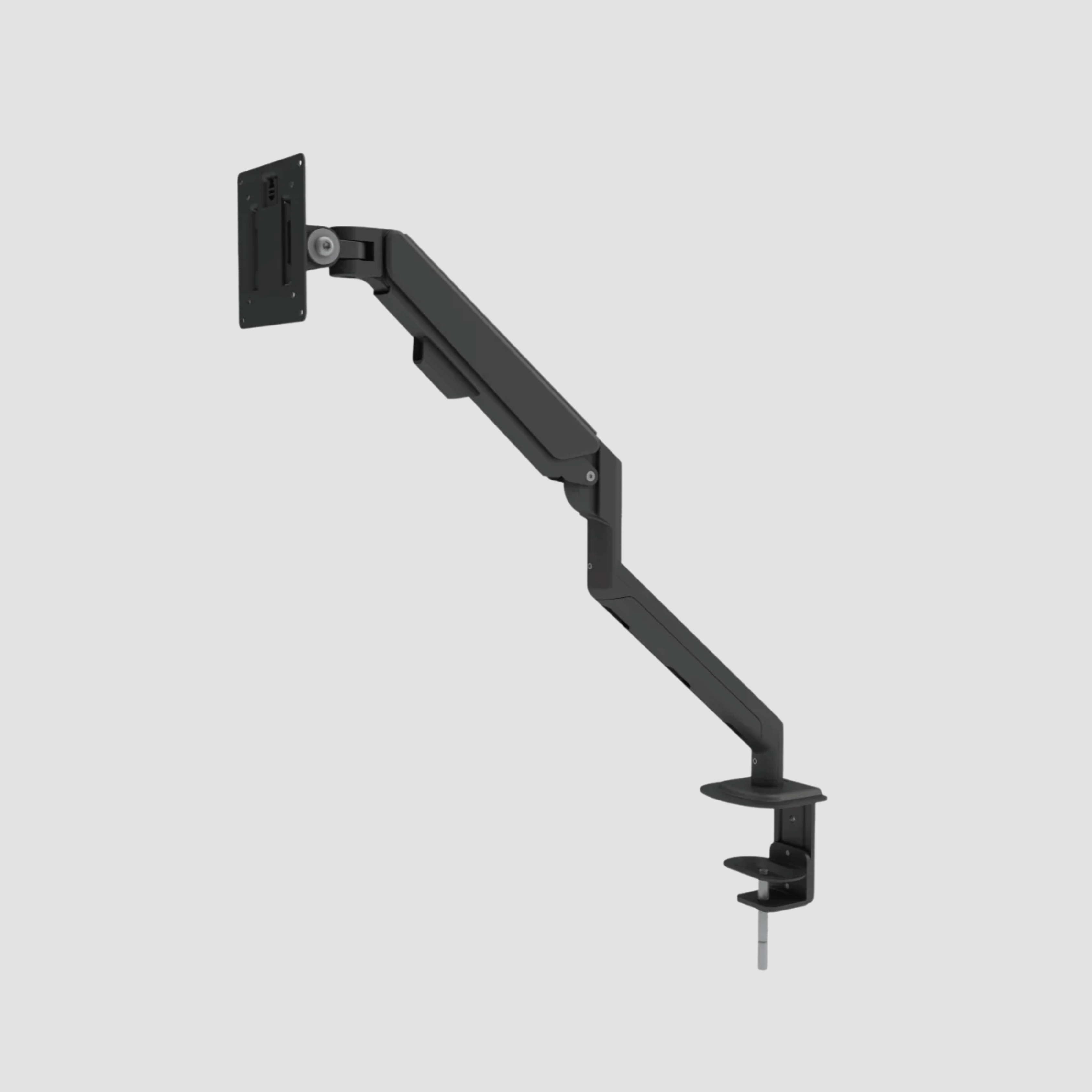

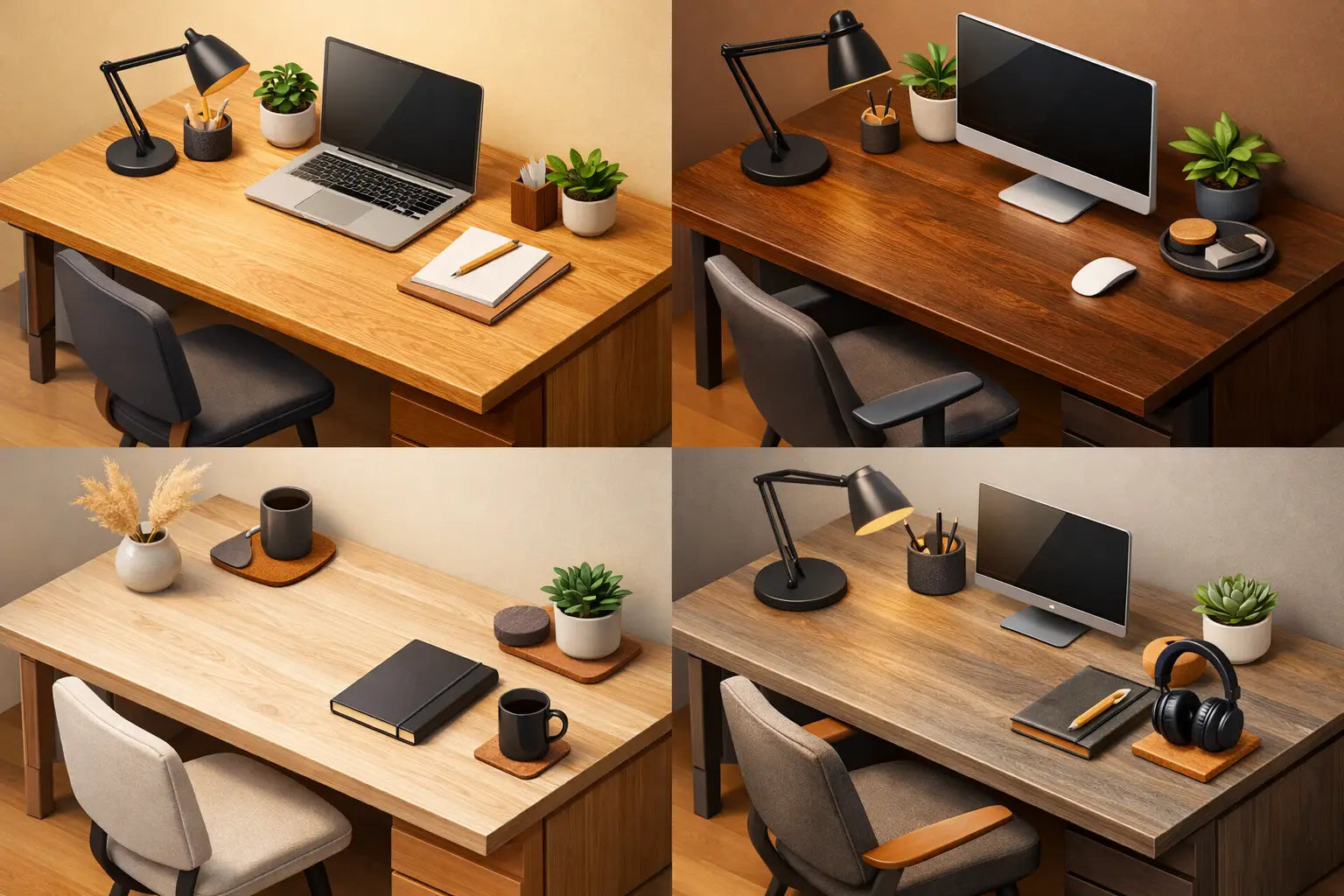
A monitor arm can make a desk feel immediately lighter: more open oak surface, fewer visual distractions, and a screen that moves with your work rather than dictating it. But knowing how to position monitor arm hardware properly is what turns that clean look into genuine everyday comfort. A beautifully made desk deserves more than a screen fixed too low, too far away, or angled into glare.
The aim is not a single rigid posture. It is a screen position that lets your eyes, neck, shoulders and hands stay relaxed while you work, then adjusts easily when you sit, stand, read, present or focus deeply. Start with the body, then set the screen around it.
Start with your chair and desk height
A monitor arm cannot correct a workstation that begins at the wrong height. Before touching the arm, sit in your normal working position with both feet supported by the floor or a footrest. Let your shoulders settle instead of lifting them towards your ears. Your elbows should be close to your sides, with your forearms resting comfortably around level with the keyboard.
For a height-adjustable desk, set the desk to support this position rather than adjusting your chair excessively. The chair should support your hips and lower back; the desk should meet your relaxed arm height. If you work standing, bring the desktop to the same elbow-height relationship. Your wrists should remain neutral rather than bent upwards to reach the keyboard.
Only once this foundation feels natural should you place the display. This order matters. Many people raise or lower their monitor to compensate for a chair, desk or keyboard that is simply not set well.
How to position a monitor arm at the right height
As a starting point, place the top edge of your display at, or slightly below, eye level. When you look straight ahead, your eyes should naturally meet the upper third of the screen. This encourages a gentle downward gaze, which is usually more comfortable than holding the chin up to look at a high display.
There are exceptions. If you wear progressive lenses, a monitor placed too high can make you tip your head back to find the clear part of the lens. A slightly lower position is often better. If your work involves close visual detail, such as design, editing or spreadsheets, you may also prefer a little more downward viewing angle. Comfort is the measure, not a diagram.
Set the arm so the display does not force you to lean forward or crane your neck. Sit back against the chair and look at the screen. If your head naturally moves forward after ten minutes, the screen may be too far away, too small for the task, or positioned too low.
For a single monitor, centre the screen directly in front of you. Avoid placing it to one side unless it is genuinely a secondary display. A screen used for most of the day should sit on your central line of sight, so your neck is not quietly rotating for hours.
Set the distance before fine-tuning the angle
A useful rule is to begin with the screen about an arm’s length away - often around 50 to 70 cm for a typical 24 to 32-inch display. The right distance depends on screen size, resolution, text scaling and your eyesight. Larger displays can sit further back; a compact display may need to come closer.
Rather than measuring obsessively, test it with your everyday work. You should be able to read normal text without squinting, enlarging everything unnecessarily or leaning towards the screen. If you catch yourself moving your head forward, bring the display closer or increase text size. If your eyes feel strained by the end of the day, first assess brightness, scaling and glare before assuming the arm height is the issue.
Once distance feels right, tilt the screen slightly back, typically by 10 to 20 degrees. This helps keep the display surface broadly perpendicular to your line of sight and can reduce reflections from ceiling lights or windows. Do not tilt it so far back that you are looking at a mirror of the room.
A small side-to-side adjustment can also make a surprising difference. If daylight enters from one side, rotate the arm enough to reduce reflections while keeping your body facing forward. The goal is clear visibility without turning the whole desk into a darkened corner.
Place the arm so it supports the way you work
The monitor arm’s mounting point determines how freely the screen can move. On a generous desktop, mounting the arm near the rear edge is usually the cleanest and most functional choice. It creates room for the keyboard, keeps the display from crowding the front of the desk, and allows cables to travel neatly behind the screen.
Do not assume the centre is always best. A single monitor often works well with the arm mounted slightly off-centre, especially when the arm has a wide arc or the screen needs to sit centrally above the keyboard. The important detail is where the display lands, not where the clamp looks most symmetrical.
For a solid oak desk, use the correct clamp or grommet mounting method and follow the arm manufacturer’s load guidance. Position the clamp on a stable section of the desktop, away from unsupported edges, joins or cable cut-outs. A protective pad between clamp and timber can help preserve the finish, provided it does not compromise the clamp’s grip. Real wood is strong and made for long service, but thoughtful installation respects the material.
Check the depth of the arm as well. Some arms need significant clearance behind the desk when they swing. If the desk sits close to a wall, choose a mounting position and arm geometry that still allow the screen to move without repeatedly knocking the wall or pulling at cables.
If you use two monitors
Dual-screen setups need a different approach. Place the display you use most directly in front of you, then angle the secondary monitor inwards beside it. If both screens receive equal use, position them in a shallow V shape with the join centred in front of your nose.
Keep the top edges aligned where possible, and place the screens at roughly the same distance from your eyes. One screen set far back and the other close will make your visual system work harder than it needs to. With two larger displays, a curved arrangement often feels more natural than a perfectly flat line.
Avoid mounting both screens excessively high just to clear desk accessories. A clear desktop is valuable, but not at the cost of an uncomfortable neck position. This is where a well-designed arm earns its place: it should create space without asking the body to compromise.
If you switch between sitting and standing
A height-adjustable desk changes the relationship between you and the monitor. When the desktop rises, the arm and display rise with it, which is ideal - but the screen still needs to be adjusted for your standing posture. Many people stand taller with different footwear, and a monitor position that feels exact while seated can be slightly low or high when standing.
Set one comfortable seated position first, then raise the desk and check your sightline again. Use the arm’s height adjustment or tilt to create a standing position that feels equally relaxed. If you switch often, mark neither setting as perfect. A small amount of adjustment is better than forcing one fixed screen position to serve every posture.
The same principle applies to shared workspaces. An arm makes a desk more adaptable, but it should be easy to move and secure enough to stay where it is placed. Check the tension setting for the monitor’s weight. If the screen slowly drifts down, the arm needs tightening; if it takes force to move, it may be too tight.
Keep cables loose enough to move
A monitor arm only looks considered when its cables move with it. Route power, video and USB cables through the arm’s cable channel if it has one, leaving enough slack at each hinge for the full range of motion. Then test the arm at its highest, lowest, nearest and furthest positions.
Cables pulled tight can strain ports, limit the arm’s movement and create an untidy loop exactly where the desk should feel calm. Too much slack, however, can hang visibly below the desktop. The best result is controlled length: enough freedom for movement, no excess competing with the clean line of the workspace.
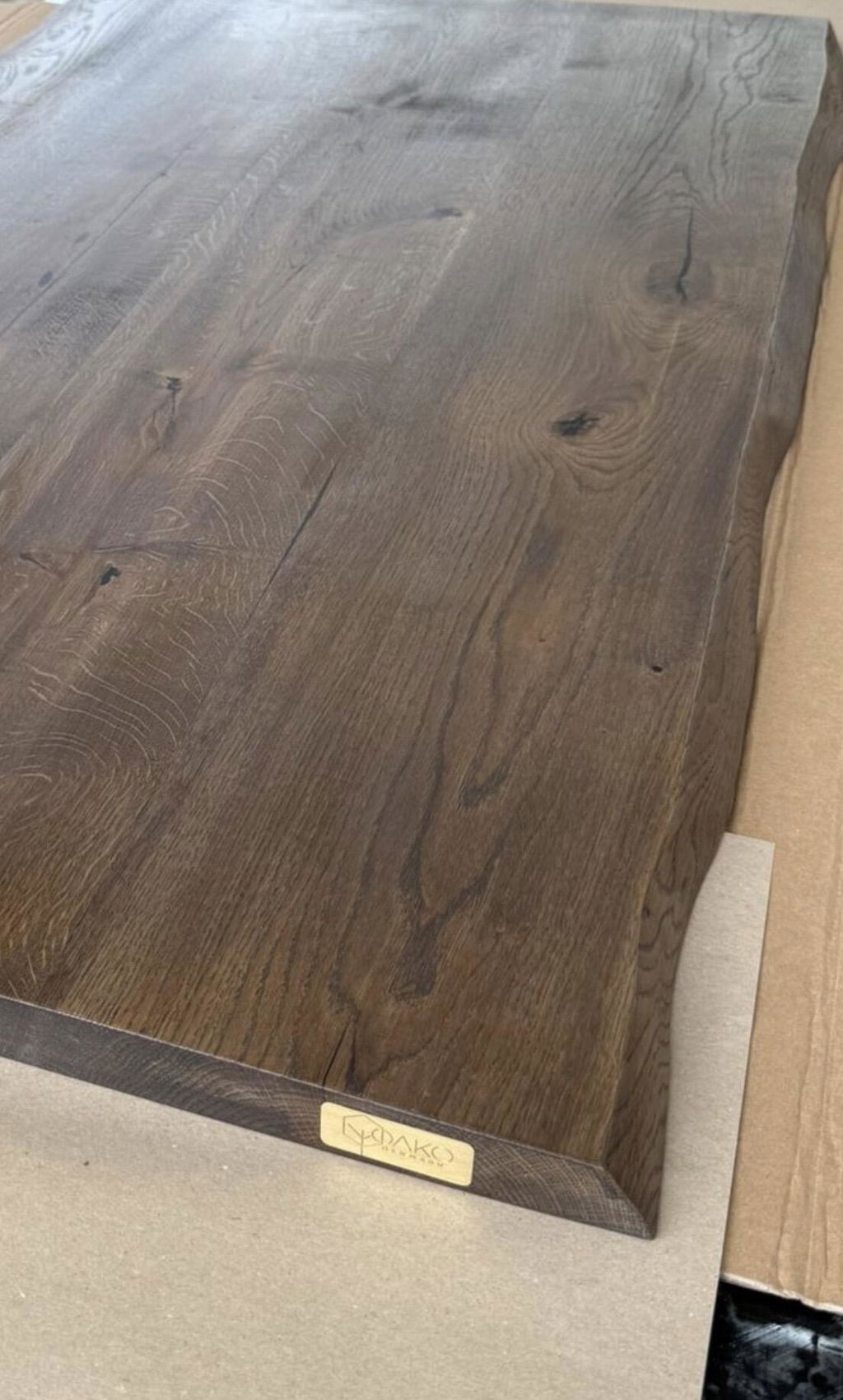
On an oak desktop, cable management also protects the visual integrity of the surface. Let the natural grain remain visible, and keep the practical elements disciplined beneath it.
Check the position after a real working day
The final adjustment cannot be made in thirty seconds. Work at the desk for a full morning or afternoon, then notice what your body is doing without correcting it. Are you lifting your chin? Turning your shoulders? Leaning forward? Rubbing one side of your neck? These are useful signals, not failures.
Make one change at a time: a little more height, a few centimetres less distance, a touch more tilt. Large changes can make it difficult to know what actually improved the setup. Recheck whenever you change chair height, add a laptop, move the desk, replace the monitor or begin using different glasses.
A monitor arm should leave your screen exactly where it is useful and almost invisible in the way it supports you. When the display floats at the right height above a warm, honest oak surface, the desk feels less like a collection of equipment and more like a place made for sustained, considered work.


Leave a comment
This site is protected by hCaptcha and the hCaptcha Privacy Policy and Terms of Service apply.